Installation
Automatic Installation
- Go to https://github.com/SRXDModdingGroup/SRXDBepInExInstaller/releases/latest/ and download the installer for your operating system.
- Run the installer.
- Put your mods in the
Spin Rhythm\BepInEx\pluginsfolder.
Manual Installation
If you get the error "failed to execute script srxdbepinexinstallerui" or installer not responding, try this method below to get it installed:
1. Installing BepInEx
- Navigate to
Steam\steamapps\common\Spin Rhythm - Go to https://builds.bepis.io/projects/bepinex_be, scroll down to your preferred version and get the one that says "BepInEx Unity IL2CPP for Windows x64 Machines"
- Extract the zip into your
Spin Rhythmfolder (Steam\steamapps\common\Spin Rhythm).
Optional (Only Do these Steps If You are Installing Versions 378 or Lower!)
- Go into the "BepInEx" folder that is now in your
Spin Rhythmfolder. - Create a folder naned
unity-libsinside of the BepInEx folder - Go to https://github.com/LavaGang/Unity-Runtime-Libraries/raw/master/2020.1.15.zip
- Download the zip and extract it into the just created "unity-libs" folder
2. Finalizing
- Now navigate to
Spin Rhythm\BepInEx - Create a
pluginsfolder inside theBepInExfolder - Put your mods in the
Spin Rhythm\BepInEx\pluginsfolder.
Notes for Linux and Mac Users
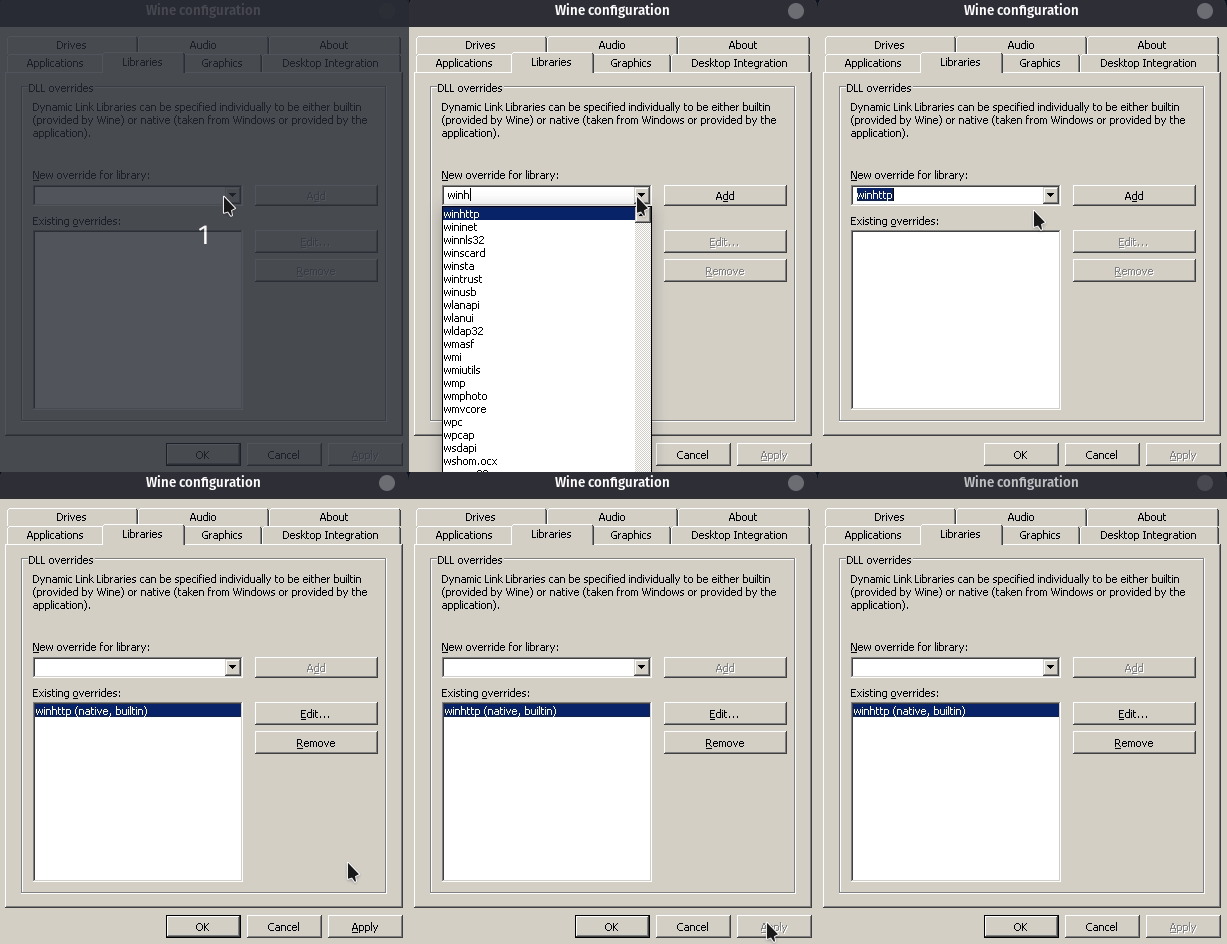
If you are on Linux or Mac, remember to add winhttp to the wine configuration overrides. Otherwise, BepInEx may not start with the game.
Here's how to do that:
Proton on Linux Users (Make sure Winetricks is installed)
# Install pipx
## Arch Linux:
sudo pacman -S python-pip python-pipx python-setuptools python-virtualenv
## Debian linux
sudo apt install python3-pip python3-setuptools python3-venv pipx
## Fedora Linux
sudo dnf install python3-pip python3-setuptools python3-libs pipx

# Use pipx to install Protontricks (you might have to restart your terminal)
pipx install protontricks
# After install, enable desktop integration
protontricks-desktop-install

# Run protontricks
protontricks --gui
## Select Spin Rhythm XD from the list of games
## Select the default wineprefix
## Run winecfg
Then Navigate to the Libraries Tab